

Promokit GDPR Cookies (pkcookies)
Overview
Promokit GDPR Cookies helps you manage website cookies effortlessly and ensures GDPR compliance. The module provides a customizable cookie consent banner that allows your visitors to manage their cookie preferences across different categories:
- Strictly Necessary
- Functionality
- Tracking
- Targeting cookies
The module automatically detects scripts loaded on your store with the native assets manager, giving you full control over which scripts are loaded based on customer consent.
Configuration
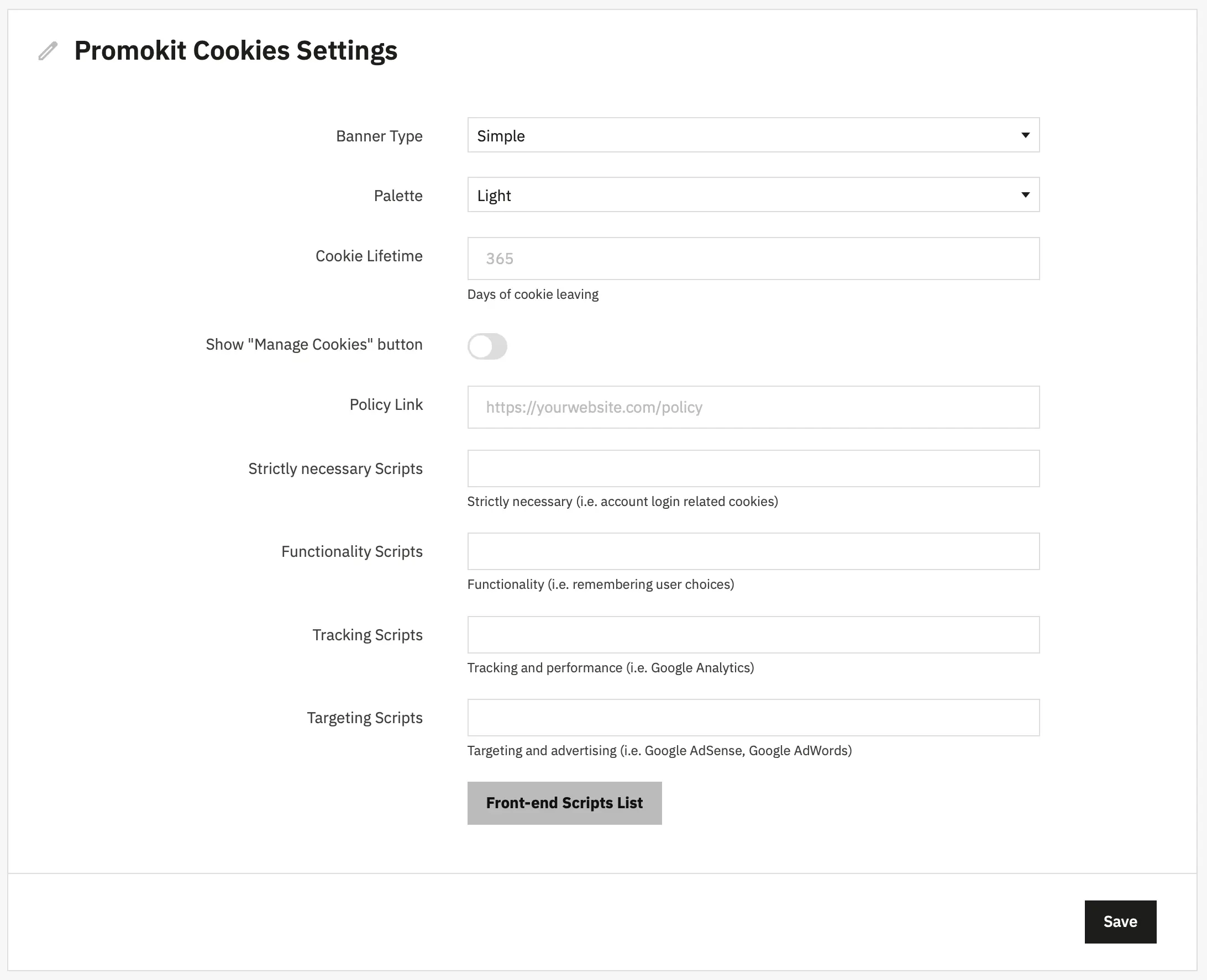
Banner Type
Choose from four different banner display styles to match your website design:
- Simple — A compact banner that appears at the bottom of the page with essential cookie information and accept/decline buttons.
- Headline — A banner with a prominent headline that draws attention while maintaining a clean design.
- Interstitial — A modal-style banner that appears in the center of the screen, requiring user interaction before proceeding.
- Standalone (Full Page Banner) — A full-page overlay that ensures users make a conscious decision about their cookie preferences.
Palette
Select the color scheme for your cookie banner:
- Light — Light background with dark text, suitable for most website designs.
- Dark — Dark background with light text, ideal for websites with dark themes.
Cookie Lifetime
Cookie Lifetime — Set the duration (in days) for how long the user's cookie preferences will be remembered. Default is 30 days. After this period expires, the banner will be displayed again to the user.
Show "Manage Cookies" Button
Show "Manage Cookies" button — When enabled, displays a floating button on the website that allows users to open the cookie settings at any time and modify their preferences. This button appears as a cookie icon fixed to the bottom right of the screen.
Policy Link
Policy Link — Enter the full URL to your website's privacy policy or cookie policy page. This link will be displayed in the cookie banner, allowing users to learn more about how you use cookies.
Example: https://yourwebsite.com/privacy-policy
Cookie Categories
The module organizes cookies into four categories based on their purpose. You can assign different scripts/modules to each category:
Strictly Necessary Scripts
These are essential cookies required for the website to function properly. Users cannot disable these cookies as they are necessary for basic site operations such as:
- Account login and authentication
- Shopping cart functionality
- Security features
- Basic website functionality
Configuration: Select the scripts/modules that are essential for your website operation. These scripts will always load regardless of user preferences.
Functionality Scripts
These cookies enable enhanced functionality and personalization features. They do not strictly break core site functionality when disabled, but disabling them may remove convenience features.
- Examples: remembering user language, storing favorites items (
pkfavorites), product comparison features (pkcompare), UI customizations, chat widgets and customer support tools. - Configuration: Assign module scripts or registered asset names to the
Functionalitycategory. These scripts are typically loaded by default but may be blocked if the user declines optional cookies.
Tracking Scripts
Tracking cookies collect information about how visitors use your website and are used for analytics and performance monitoring.
- Examples: Google Analytics, visitor behavior tracking, performance monitoring, heatmap tools, session recording.
- Configuration: Place analytics and monitoring scripts under
Tracking. These scripts are blocked by default and only enabled when the user explicitly consents to tracking cookies.
Targeting Scripts
Targeting cookies are used for advertising, remarketing and personalization of ads.
- Examples: Google AdSense, Google Ads remarketing, Facebook Pixel, retargeting campaigns, affiliate tracking.
- Configuration: Add advertising and marketing scripts to
Targeting. These scripts are blocked until the user gives explicit consent for targeting cookies.
Used Hooks
displayHeader— Loads frontend CSS/JS and enforces script loading rules based on consent.displayBackOfficeHeader— Loads admin panel assets when needed.displayFixedBottomRight— Renders the floating "Manage Cookies" button.
Best Practices
- Categorize correctly — only essential scripts in
Strictly Necessary. - Keep privacy policy updated — ensure the linked policy reflects actual cookie usage.
- Test blocking — verify tracking/targeting scripts do not run when declined.
Troubleshooting
Banner not appearing:
- Clear browser cookies and cache.
- Clear PrestaShop cache (Back Office → Advanced Parameters → Performance).
- Ensure the module is installed and enabled.
- Check browser console for JS errors.
Scripts still load after decline:
- Verify scripts are assigned to correct categories in module settings.
- Make sure asset names in the dropdown match registered script identifiers.
- Clear caches and test in an incognito window.
Compliance Notes
This module helps by blocking non-essential scripts until consent is provided. You remain responsible for:
- Correctly categorizing cookies
- Maintaining an accurate privacy policy
- Ensuring compliance with local regulations